WhatsApp adds parental controls for teen accounts: Key features and activation guide
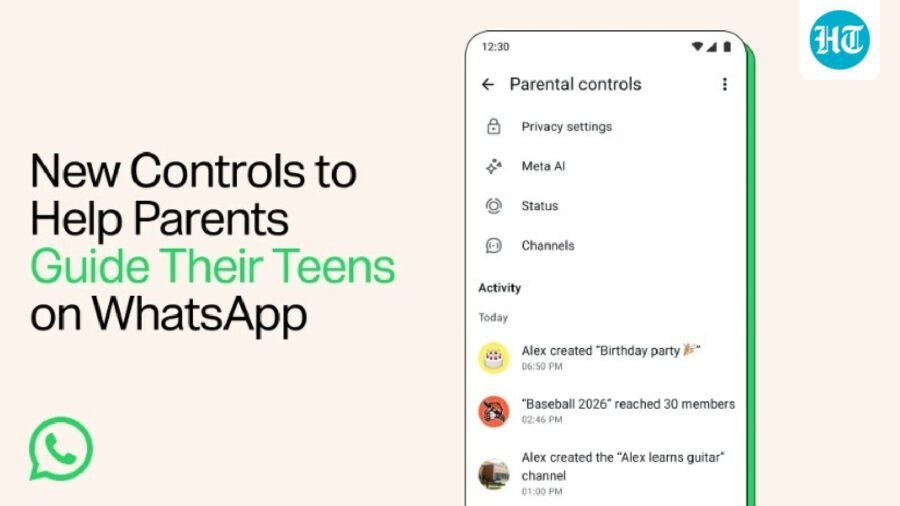
WhatsApp has started rolling out these parental controls to all its users globally. Users in India should get in the coming days.
Published on: Sep 30, 2026, 21:50:50 IST
Prefer HTon Google
Share via
Copy link
WhatsApp today announced parental controls for parents and their teenage kids. These controls are aimed at making the platform safer for teenagers and giving parents some set of controls to ensure that their kids stay safe online.
With these new set of controls parents will be able to choose the right privacy settings for their kids, monitor who their kids are connecting with and even decide on their Meta AI experience among others.
WhatsApp parental controls: What will parents be able to control
According to the details shared by WhatsApp, with the new set of parental controls parents will be able to choose privacy controls for their kids' WhatsApp accounts. This will include factors such as who can see their profile photo and who can add them to groups. If a kid wants to change any of these settings, they will need to get approval from their parents, which will be provided in the form of a parent-set PIN.
Apart from this, these new controls will also enable parents to keep a track of whom their teen is connecting with on WhatsApp. As a part of this feature, parents will be notified when their teenage kid joins or leaves a group, or when a group their teenage kid is a part of grows meaningfully in size. Parents will also be able to choose how their teenage kid can use Channels, whose Status updates they can see, and who can see theirs. Additionally, parents will be able to decide on their kids' Meta AI experience, which includes choosing between the default 13+ setting and a stricter 'Limited Content' option.
Coming to the safety, WhatsApp says that even with controls turned on, personal messages and calls of teenage kids will stay private and protected by end-to-end encryption. No one outside of the chat, not even WhatsApp, will be able see or hear them.
As far as availability is concerned, WhatsApp has started rolling out these controls to all its users globally and that they should be available to all users within the coming days.
How to set up parental controls for teens on WhatsApp
Step 1: Update your kids' WhatsApp app on their phones.
Step 2: Go to your teen’s WhatsApp account on their phone and tap Settings.
Step 3: Now go to Parental controls and then tap the Continue option.
Step 4: Enter your teen’s birthday and confirm their age.
Step 5: Tap Continue to link to a parent’s account.
How to link your teen's account from your phone on WhatsApp
Step 1: Update WhatsApp app on your phone.
Step 2: Scan the QR code displayed on your teen’s device with your phone's camera and tap the link to be taken to WhatsApp.
Step 3: Tap the Continue option.
Step 4: Verify you’re an adult and then create a 6-digit parent PIN.
Step 5: Confirm your parent PIN and then tap the Continue option.
Step 6: Tap Done option and finish account setup on your teen’s phone.
How to view, change privacy settings with parental controls in your teen's WhatsApp account
Step 1: Go to the teen’s phone and open WhatsApp.
Step 2: Tap Settings and then go to Parental controls.
Step 3: Enter your parent PIN.
Step 4: Tap Privacy Settings.
Step 5: Tap the privacy setting that you want to change.
Step 6: Select Everyone, My contacts, My contacts except…, Only share with…, or Nobody, based on the setting.
How to view your kid's activity in parental controls in WhatsApp
Step 1: Open WhatsApp on your phone.
Step 2: Tap Settings and then tap Parental controls.
Step 3: Select your teen’s account to view their activity.
How to receive notifications from your kids' account on WhatsApp
As a parent you can get informed when a contact is added, when a group is created or joined and when your kid’s name or profile picture is changed. Here's how you can turn on these notifications:
Step 1: Open WhatsApp on your phone.
Step 2: Tap Settings and then go to Parental controls.
Step 3: Select your teen’s account.
Step 4: Tap More Options and then go to Manage notifications.
Step 5: Find the notification type and toggle it on.
See Less


Virat Kohli uses this iPhone and it’s not the Pro Max
By Sohail Khan · 30 Sep

Leave a Reply