Apple issues spyware warning to iPhone users worldwide: What to do if you receive the alert
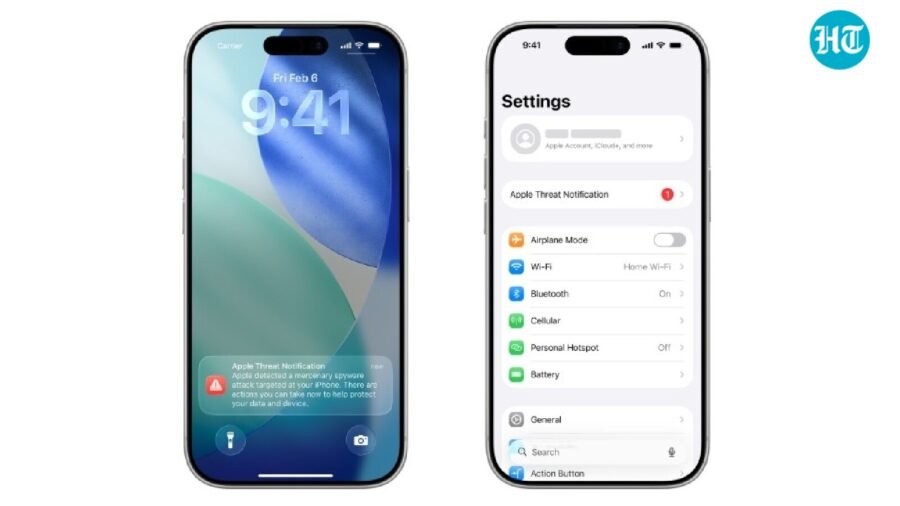
If you received a spyware warning on your iPhone or Apple account, don't ignore it. You could put your data at a risk!
Updated on: Aug 14, 2026, 13:53:54 IST
Prefer HTon Google
Share via
Copy link
You may be interested in
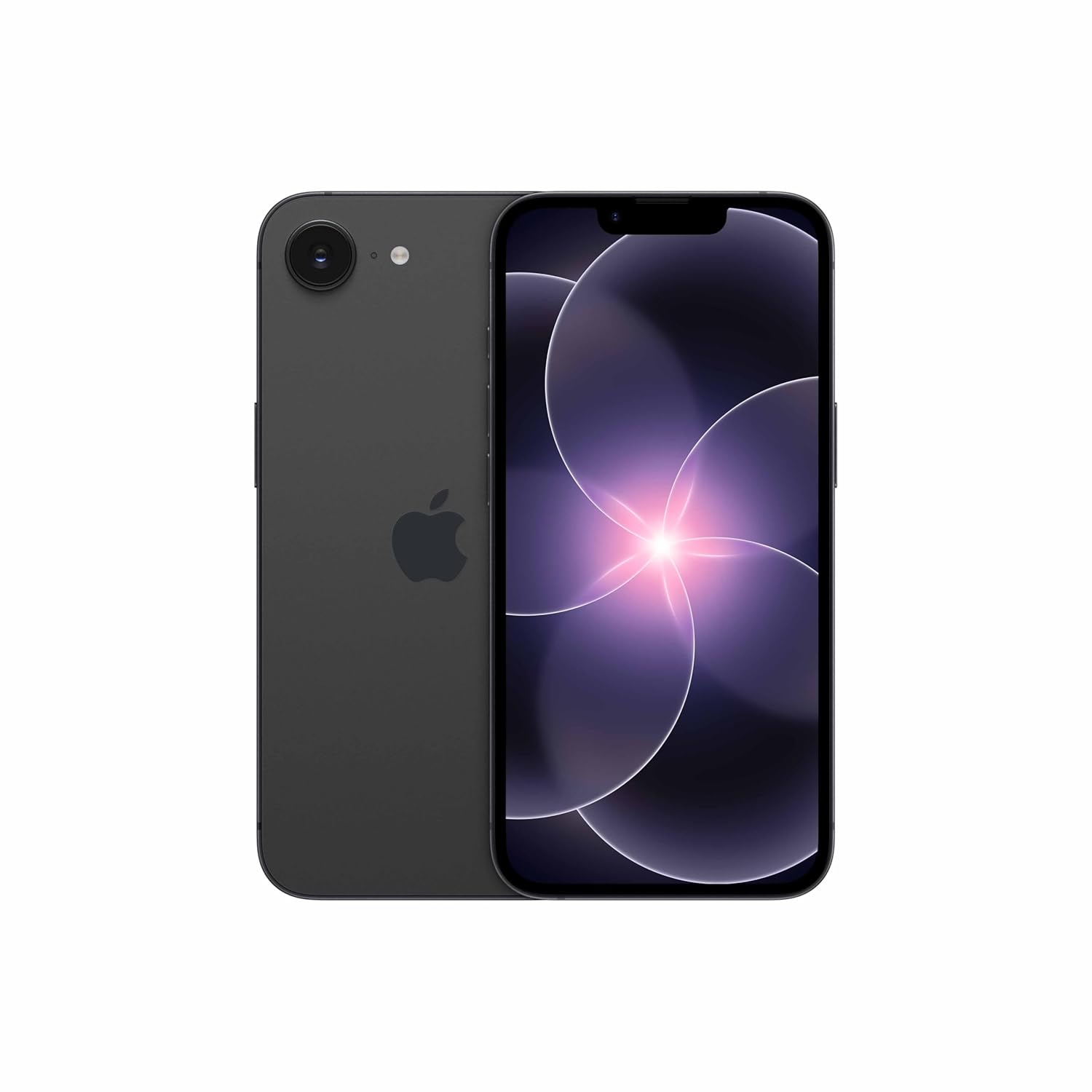
Apple iPhone 17e
 Black
Black- 8GB RAM
- 256GB / 512GB Storage

₹64,900
Check Details

1% OFF
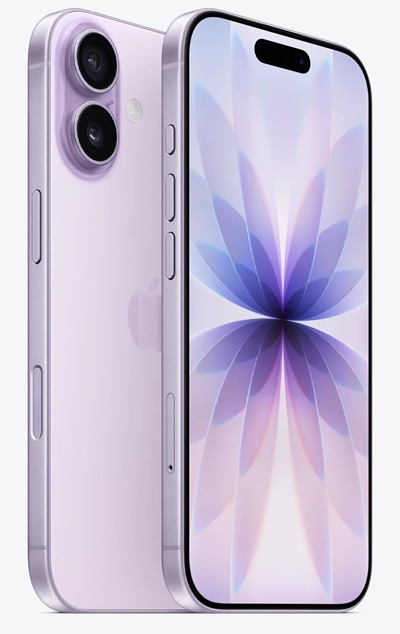
Apple iPhone 17
- Black
- 8GB RAM
- 256GB/512GB Storage
₹81,900
₹82,900
Check Details
15% OFF
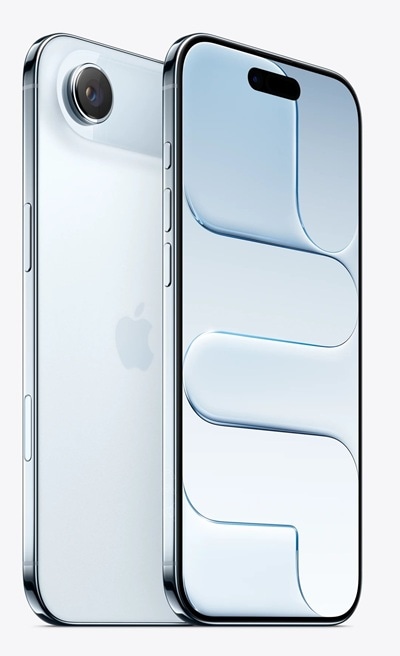
Apple iPhone Air
- Space Black
- 256GB/512GB/1TB Storage
- 6.5 inch Display Size

₹1,01,900
₹1,19,900
Check Details
5% OFF
Apple iPhone 17 Pro
- Silver
- 12GB RAM
- 256GB/512GB/1TB/2TB Storage
₹1,26,900
₹1,34,900
Check Details
5% OFF
Apple IPhone 17 Pro Max
- Silver
- 12GB RAM
- 256GB/512GB/1TB/2TB Storage
₹1,41,900
₹1,49,900
Check Details
Find more mobiles
Apple routinely notifies its users if they have been a target of a specialized spyware attack. In the past, it has warned users, including those in India, of a Pegasus-like spyware attack. Now, the company has issued a fresh threat notification to Apple device users worldwide who it suspects may have been targeted by a new spyware attack.
Should I be worried?
Apple, in an update on its support page, wrote that it has sent a threat alert to individuals in 110 countries globally informing them that they may have been a target of a mercenary spyware attack. The company says that these threat notifications are aimed to inform and help users who may have been individually targeted by mercenary spyware attacks 'because of who they are or what they do'. The targeted users include technology firms, journalists, activists, politicians, and diplomats. Apple also said that most of its users will never be targeted by such attacks.
For the unversed, a mercenary spyware attack is a highly sophisticated attack, often by state-sponsored actors, wherein the attackers apply exceptional resources to target a very small number of specific individuals and their devices. These attacks cost millions of dollars and often have a short shelf life, which makes them much harder to detect and prevent.
What is Apple saying?
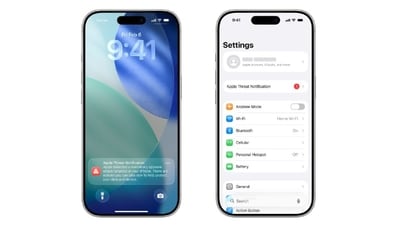
In an update on its support page, Apple wrote that it notifies the targeted user directly via push notification on the user's iPhone lock screen and in the Settings app. The company also shares an email notification to email addresses associated with the user’s Apple Account and displays a banner at the top of the user’s Apple Account page after they sign in to their Apple Account through a web browser.
Furthermore, the company said that since 2021, it had notified users in over 150 countries in total about such sophisticated attacks.
What should you do if you receive an Apple threat notification?
Apple recommends that users who receive such notifications should take multiple measures including enlisting expert help, such as the rapid-response emergency security assistance provided by the Digital Security Helpline at the nonprofit Access Now, to mitigate the threat. Here's what the company recommends:
– Update all of your Apple devices to the latest software update available.
– Enable a passcode, Touch ID or Face ID if you haven't already.
– Use two-factor authentication and a strong password for your Apple Account.
– Turn on Stolen Device Protection on your iPhone or the targeted Apple device.
– Use strong and unique passwords online and passkeys where available.
– Don’t open links or attachments from unknown senders.
– Enable Lockdown Mode on your Apple devices for additional protection.
How to enable Lockdown Mode on your iPhone?
Here's a step-by-step guide for the same:
Step 1: Open the Settings app on your iPhone.
Step 2: Tap Privacy & Security option.
Step 3: Scroll down, tap Lockdown Mode, then tap Turn On Lockdown Mode.
Step 4: Tap Turn On Lockdown Mode.
Step 5: Tap Turn On & Restart, then enter your device passcode.
How to enable Stolen Device Protection on your iPhone?
Here's a step-by-step guide for the same:
Step 1: Go to Settings app on your iPhone and then tap Face ID & Passcode.
Step 2: Enter your device passcode.
Step 3: Tap Stolen Device Protection, then turn Stolen Device Protection on.
See Less

US govt sites as targets, evading CAPTCHAs: What OpenAI’s runaway agents got up to
By Sohail Khan · 27 Sep
HP OmniPad 12 review: A promising comeback that needs more polish
By Sohail Khan · 27 Sep
Movies feel different on the right screen, and these 5 TVs are made to bring that magic home
By Sohail Khan · 27 Sep